How to post on your LinkedIn profile
- 1
Open LinkedIn and click Start a post at the top of your feed.
- 2
Write your post. Use the icons to add a photo, video, document or event.
- 3
Click the clock icon to schedule it, or Post to share now.
- 4
Click your name at the top to choose who sees it: anyone, or connections only.
How to post as a LinkedIn company page
Open your company page (you need to be an admin), make sure you are acting as the page, and click Start a post or Create. The rest works like your profile. Ask your team to share it: posts from people usually reach further than posts from pages.
Write a LinkedIn post people read
- A first line that stops the scroll: a result, a number, a lesson.
- Short paragraphs. One or two sentences each, with space between.
- One story or one lesson. Your experience beats general advice.
- End with a question so people comment.
- Carousels: upload a PDF and LinkedIn shows it as swipeable pages. Good for tips and step-by-steps.
LinkedIn limits
| What | Limit |
|---|---|
| Characters | 3,000 characters |
| Media | Pictures, 1 video, or a carousel of 2 or more pictures |
| Video | 1 per post, no other media with it |
| Carousel | 2 or more pictures, no video |
| Comments | Text only |
| Accounts | Personal profiles and company pages |
Schedule LinkedIn posts with BrokenPost
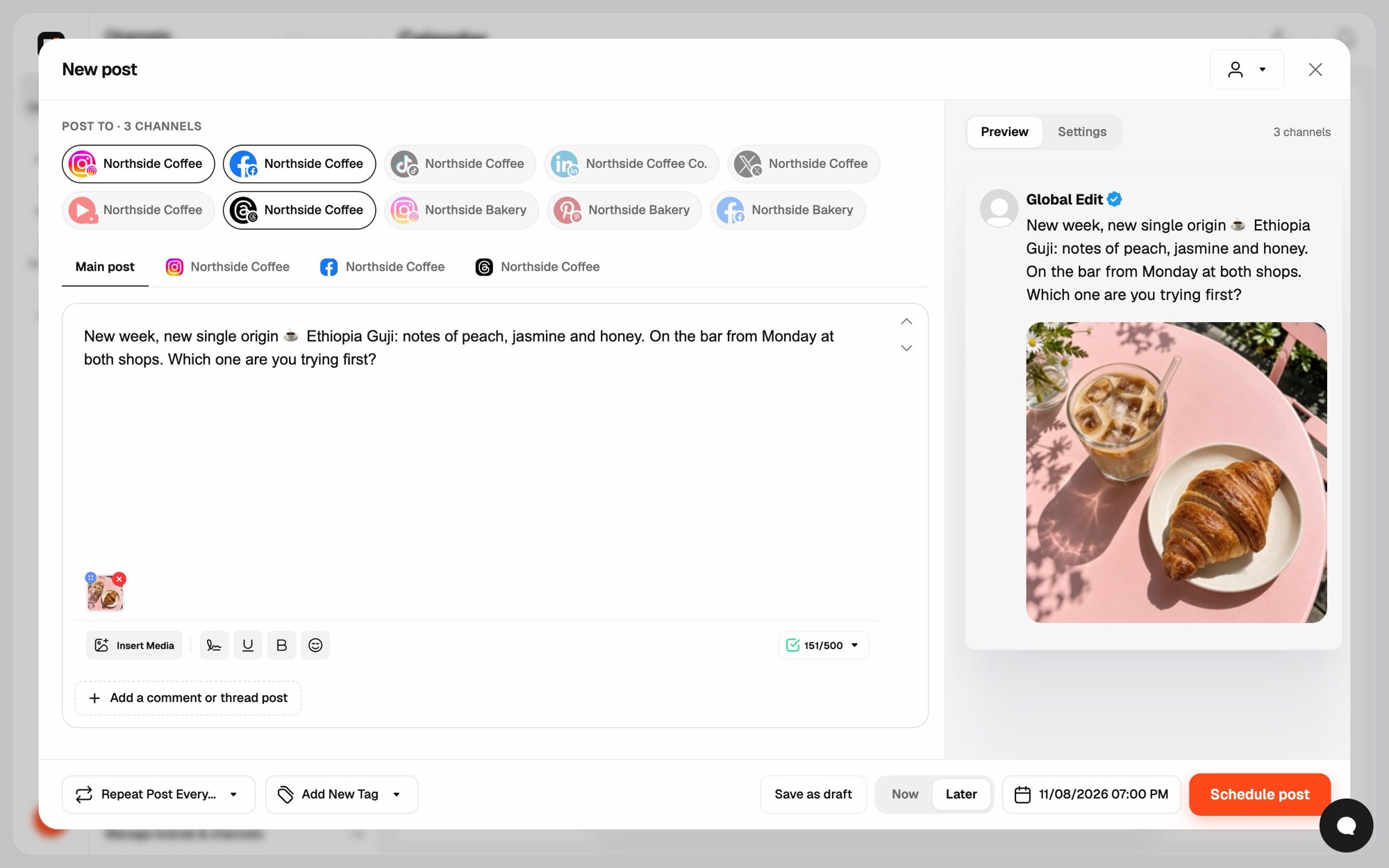
Connect your profile, your company page, or both. Write the post, add the link as a first comment with Add a comment or thread post, and schedule. Post the same news to X and Threads in a shorter version from the same editor.
Full guide: how to schedule LinkedIn posts.
Questions people ask
How long can a LinkedIn post be?
Up to 3,000 characters.
How often should I post on LinkedIn?
Two to five times a week is plenty for most people. See [how often to post](/en/blog/how-often-to-post-on-social-media).
Can I edit a LinkedIn post?
Yes. Click the three dots on the post and choose **Edit post**.