How to create a Pin
- 1
Open Pinterest and tap + at the bottom (on desktop, click Create then Pin).
- 2
Upload a picture or video.
- 3
Add a title: say what it is, with the words people would search.
- 4
Add a description with a little more detail and a few keywords.
- 5
Add the link to your website, product or blog post.
- 6
Pick a board, or create one.
- 7
Tap Publish, or schedule it for later.
Tips for Pins that get clicks
- Tall pictures: 2:3 takes more space in the feed.
- Text on the picture that says what people get: "10 easy breakfast ideas".
- Boards by topic: recipes, outfits, tips. Not "my stuff".
- Pin often, a few fresh Pins a week beat a big batch once a month.
Pinterest limits
| What | Limit |
|---|---|
| Characters | 500 characters |
| Media | 1 to 5 pictures, or 1 video plus a cover picture |
| Pictures | Up to 5 |
| Video | 1, plus a cover picture |
| Board | Required |
| Picture size | All pictures in one pin must be the same size |
Schedule Pins with BrokenPost
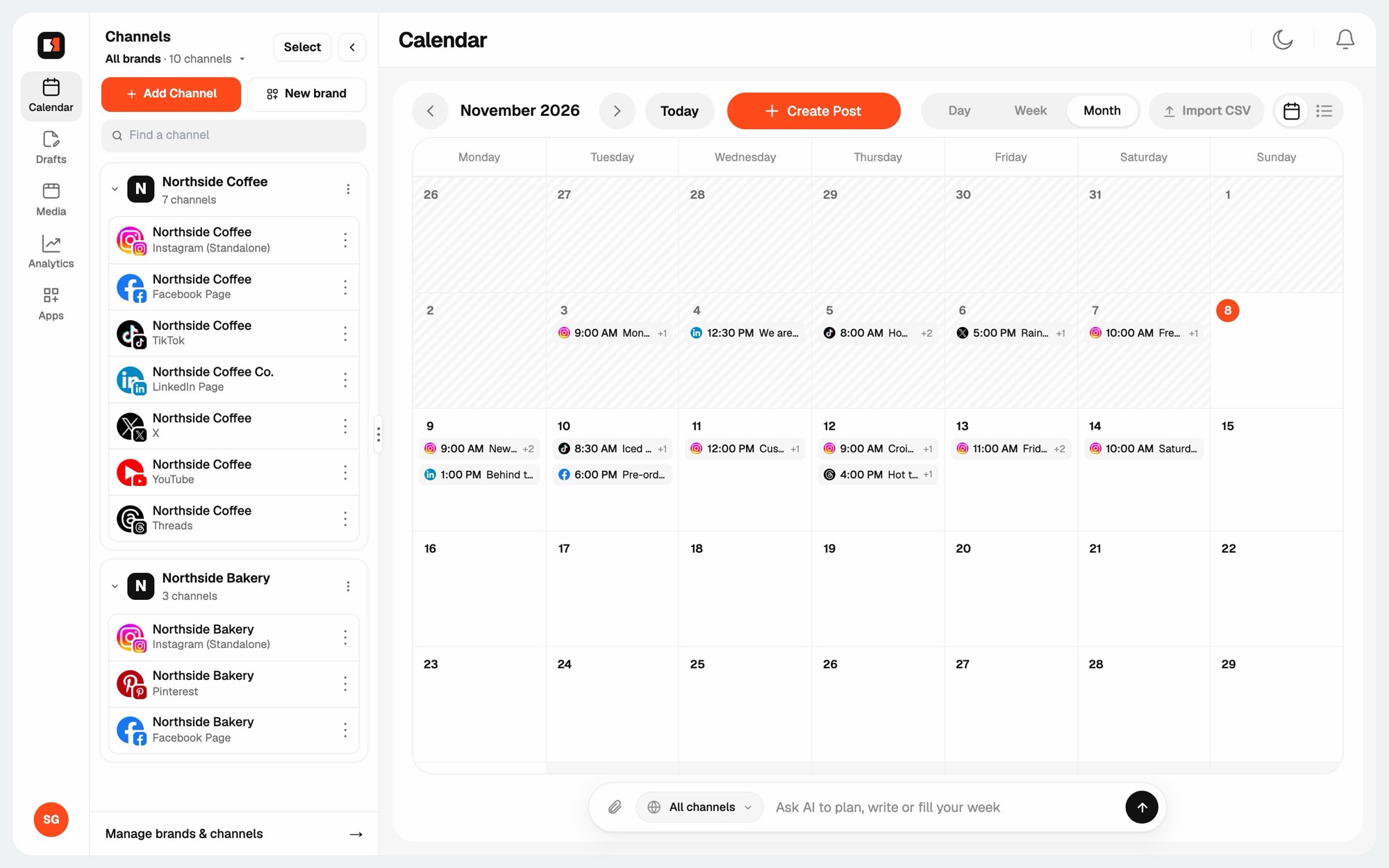
Add your picture, pick Pinterest, and set the board, title and link in Settings. Post the same picture to Instagram and Facebook from the same post.
Questions people ask
What size should a Pin be?
1000 × 1500 px, a 2:3 ratio.
Can I post a video Pin?
Yes. Upload a video instead of a picture. Through apps, a video Pin also needs a cover picture.
Do I need a business account?
Not to post, but a free business account adds analytics and is needed for most tools that post for you.