Week view
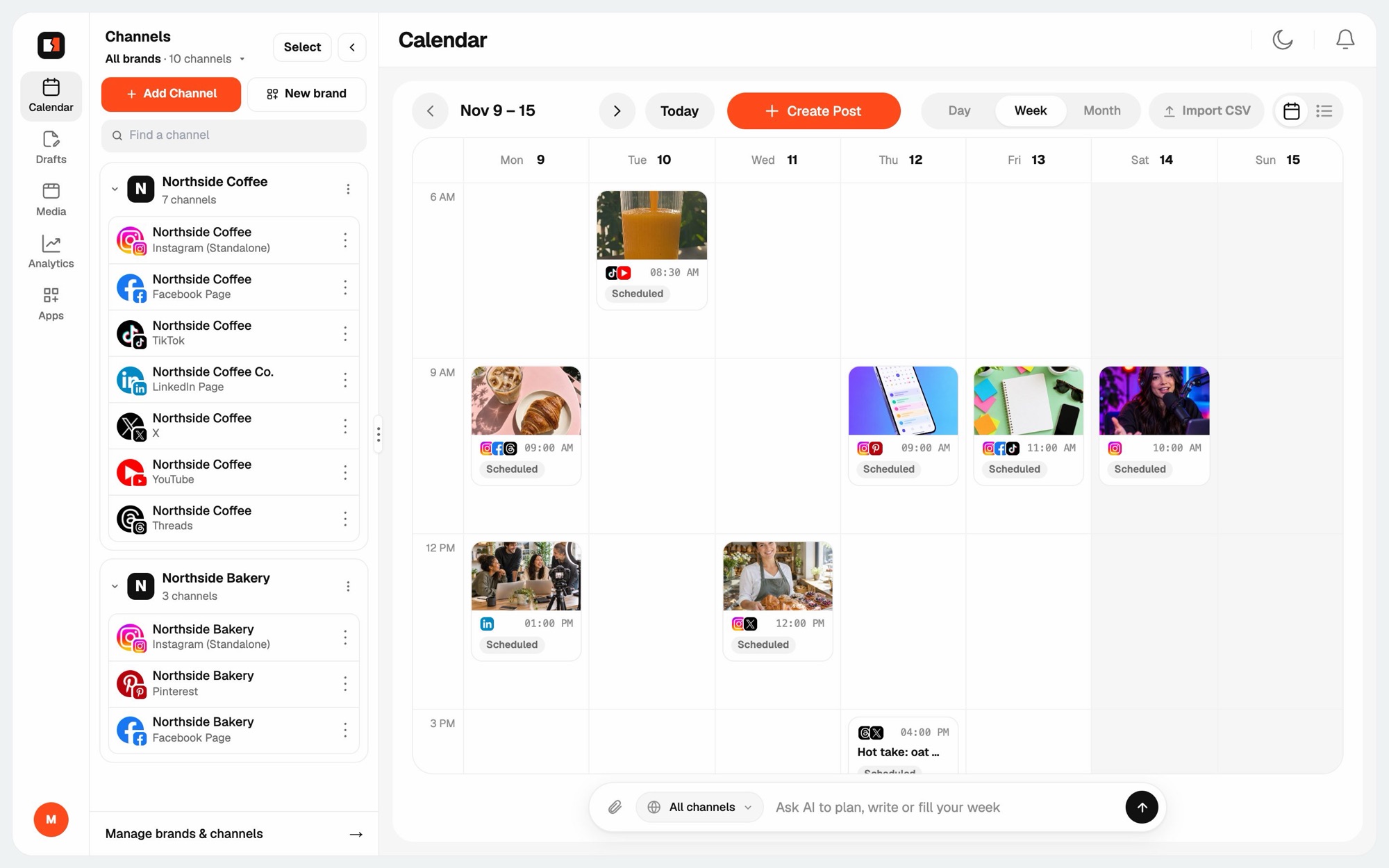
Week view is the default. Each card shows the picture, the time, the apps it goes to and its status: Scheduled, Live once published, or Failed with the reason. Use the arrows to move between weeks and Today to come back.
Month and list views
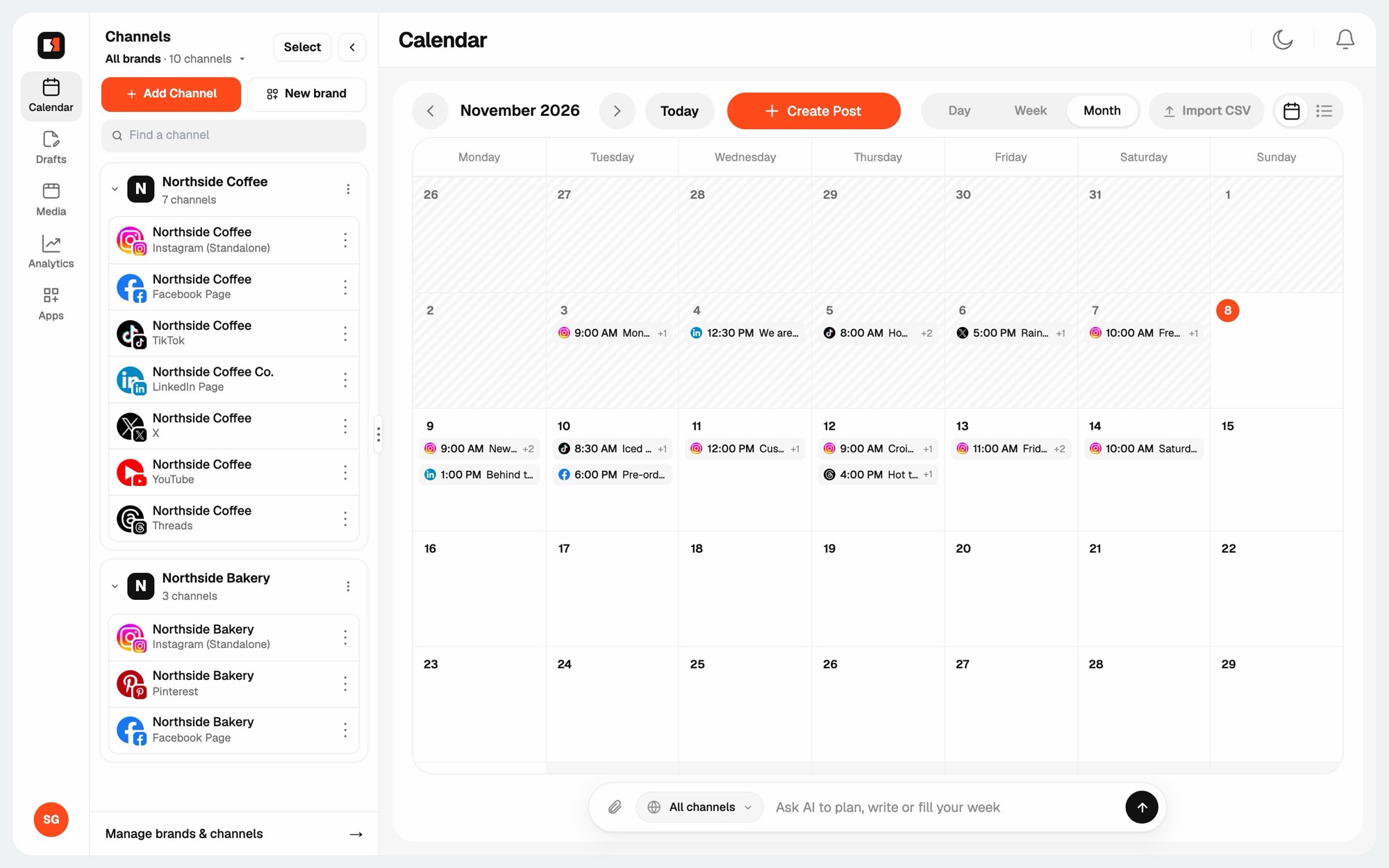
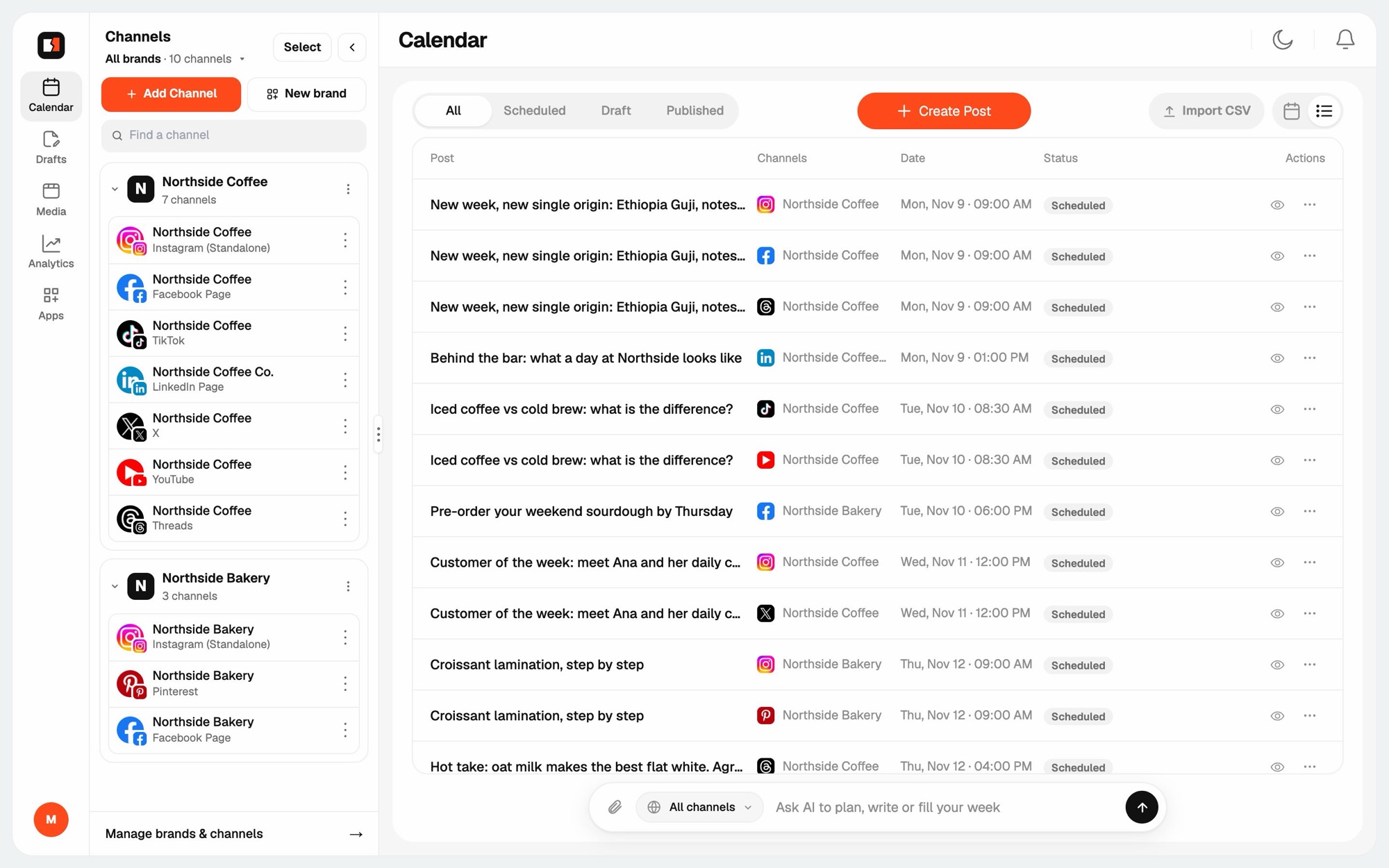
Move, copy and preview posts
- Move: drag a post to another day or time. It keeps everything else.
- Edit: click a post to open it in the editor.
- Duplicate: hover a post and click Duplicate Post to reuse it on another day.
- Preview: hover and click Preview Post to see it as it will look, and share the link for feedback.
- Start a post at a time: click an empty slot.
Filter by brand or channel
The left panel lists your brands and channels. Click a channel to show only its posts. Use the brand menu at the top to see one brand at a time, handy when you manage several clients.
Plan a week with AI, or import a CSV
The bar at the bottom says Ask AI to plan, write or fill your week. Type something like "plan 5 posts for next week about our new menu" and it drafts them onto the calendar for you to check.
Moving from another tool? Click Import CSV to bring in a spreadsheet of posts. See how to switch social media schedulers.
Questions people ask
Can I see posts from all my apps in one calendar?
Yes. Every connected app shows on the same calendar.
Can I change my time zone?
Yes, in **Settings > General > Time zone**. Posts are scheduled in that zone.
Does moving a post change its text?
No. Dragging only changes the date and time.