Upload pictures and videos
- 1
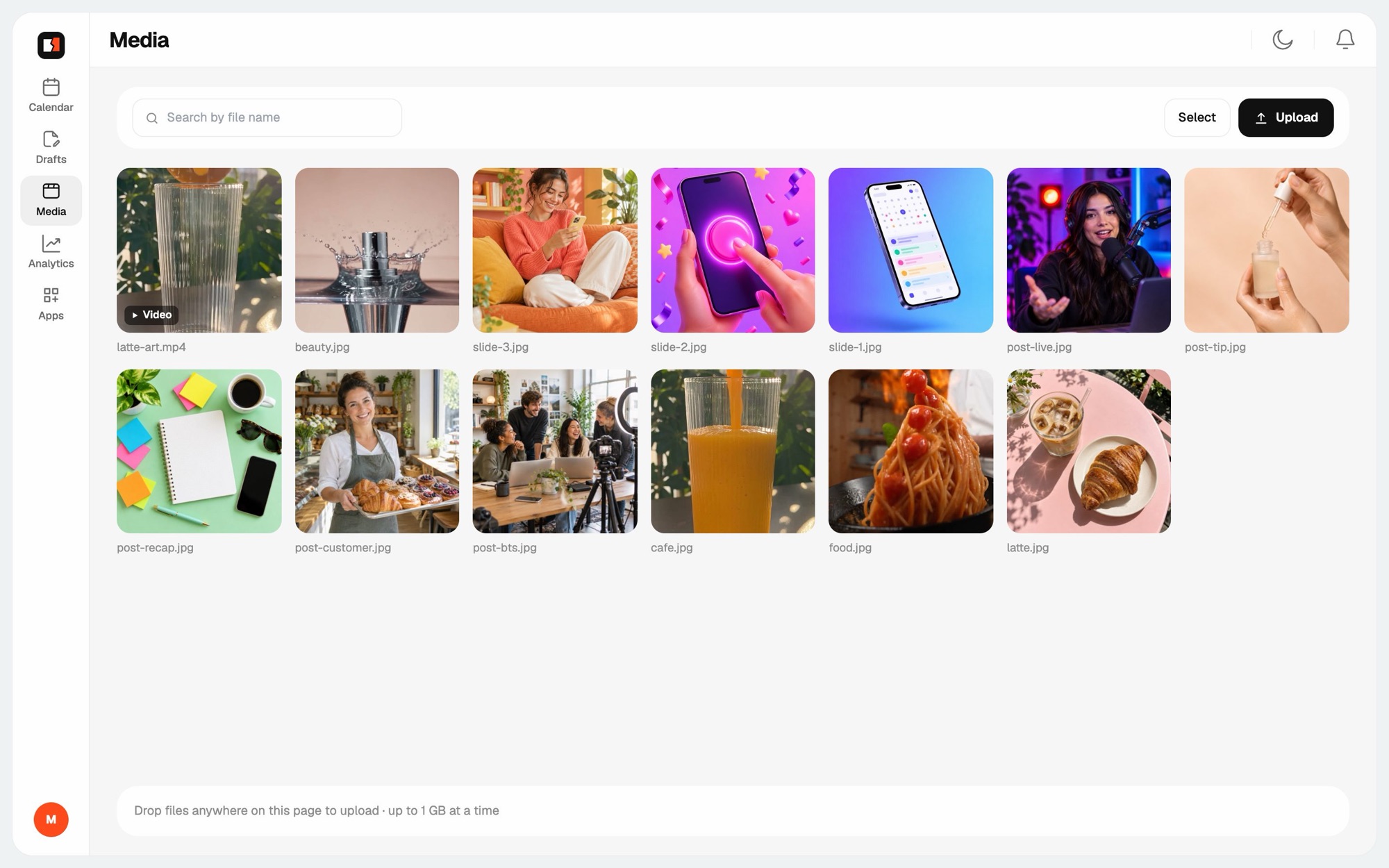
Click Media in the left menu.
- 2
Click Upload, or drag files from your computer anywhere on the page.
- 3
Wait for the upload to finish. Videos show a Video label.
Search by file name at the top. Click Select to pick several files at once, for example to delete them.
Add media to a post
- 1
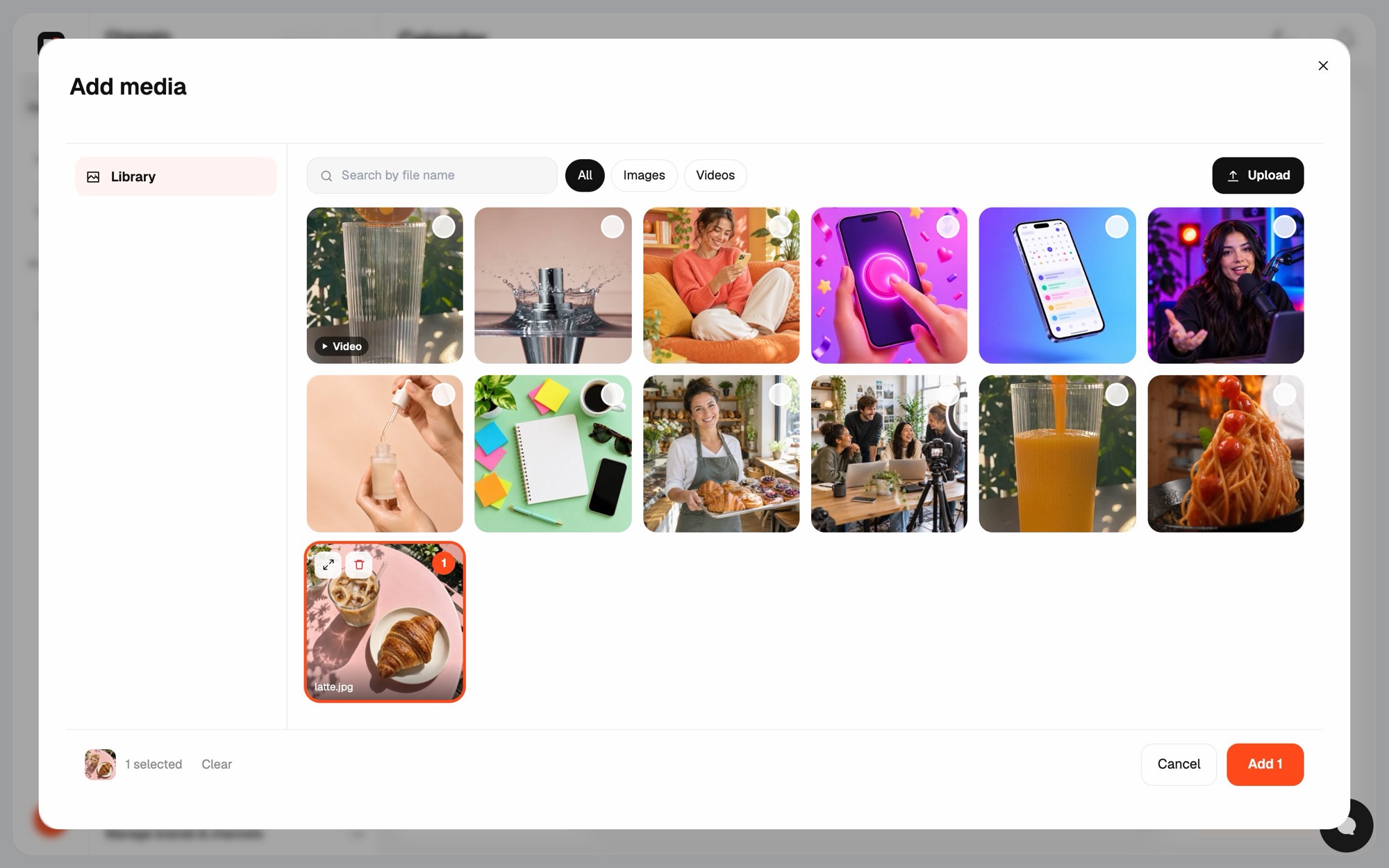
In the editor, click Insert Media.
- 2
Filter by Images or Videos, and click the files you want. The number on each is its order in the post.
- 3
Click Add. Drag the thumbnails in the editor to reorder them.
Questions people ask
How big can a file be?
You can upload up to 1 GB at a time. Each app has its own limit per video; BrokenPost tells you if a file is too big for an app.
Can I upload straight from the editor?
Yes. Drop a file into the editor, or click **Upload** in the Add media window.