Step 1: connect your social accounts
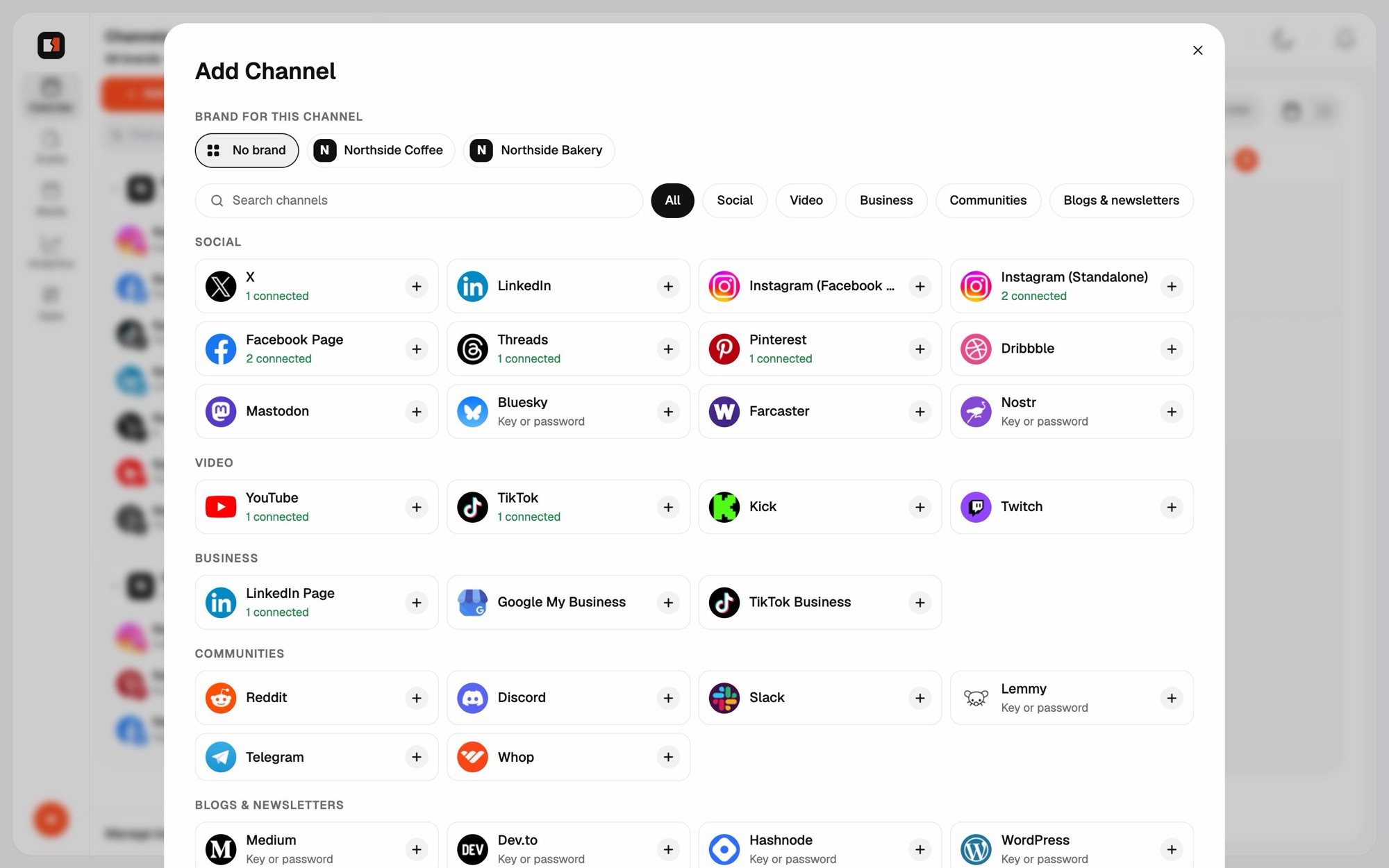
Your calendar is the home screen. The left panel lists your channels, grouped by brand. On a new account it is empty, so start with Add Channel.
- 1
Click Add Channel at the top of the channels panel.
- 2
Pick a brand for the channel, or leave it on No brand.
- 3
Click the app, for example Instagram (Standalone) or LinkedIn Page, and sign in when the app asks.
- 4
Allow the permissions. The channel appears in your panel, ready to post.
More detail, including business accounts and reconnecting: how to connect your social media accounts.
Step 2: write your first post
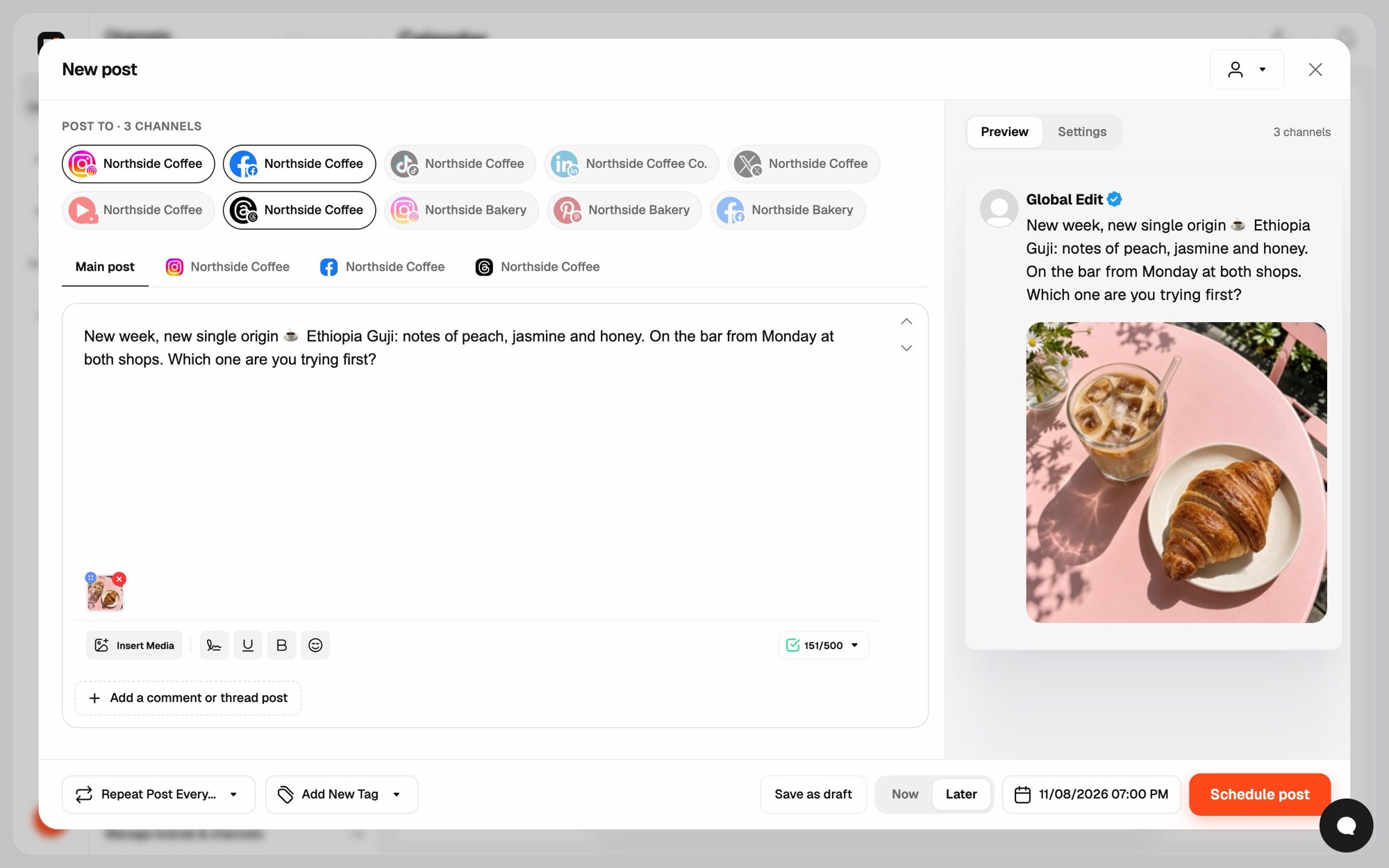
Click Create Post. The editor opens with every channel you connected at the top, under Post to.
- 1
Click each channel you want this post on. Picked channels get a dark outline.
- 2
Write your text in the main post. The counter shows how many characters the strictest picked app allows.
- 3
Click Insert Media to add a picture or video from your library, or drop a file straight into the editor.
- 4
Check the Preview on the right. Open Settings to set options per app, like Reel or Story on Instagram.
Step 3: schedule it
- 1
At the bottom, pick Later (or Now to publish straight away).
- 2
Click the date and choose the day and time. Times use your time zone, set in Settings.
- 3
Click Schedule post.
That is it. BrokenPost publishes the post at that time, even with your laptop closed. If an app refuses it, you get an email and the post shows the reason on your calendar.
Step 4: check your calendar
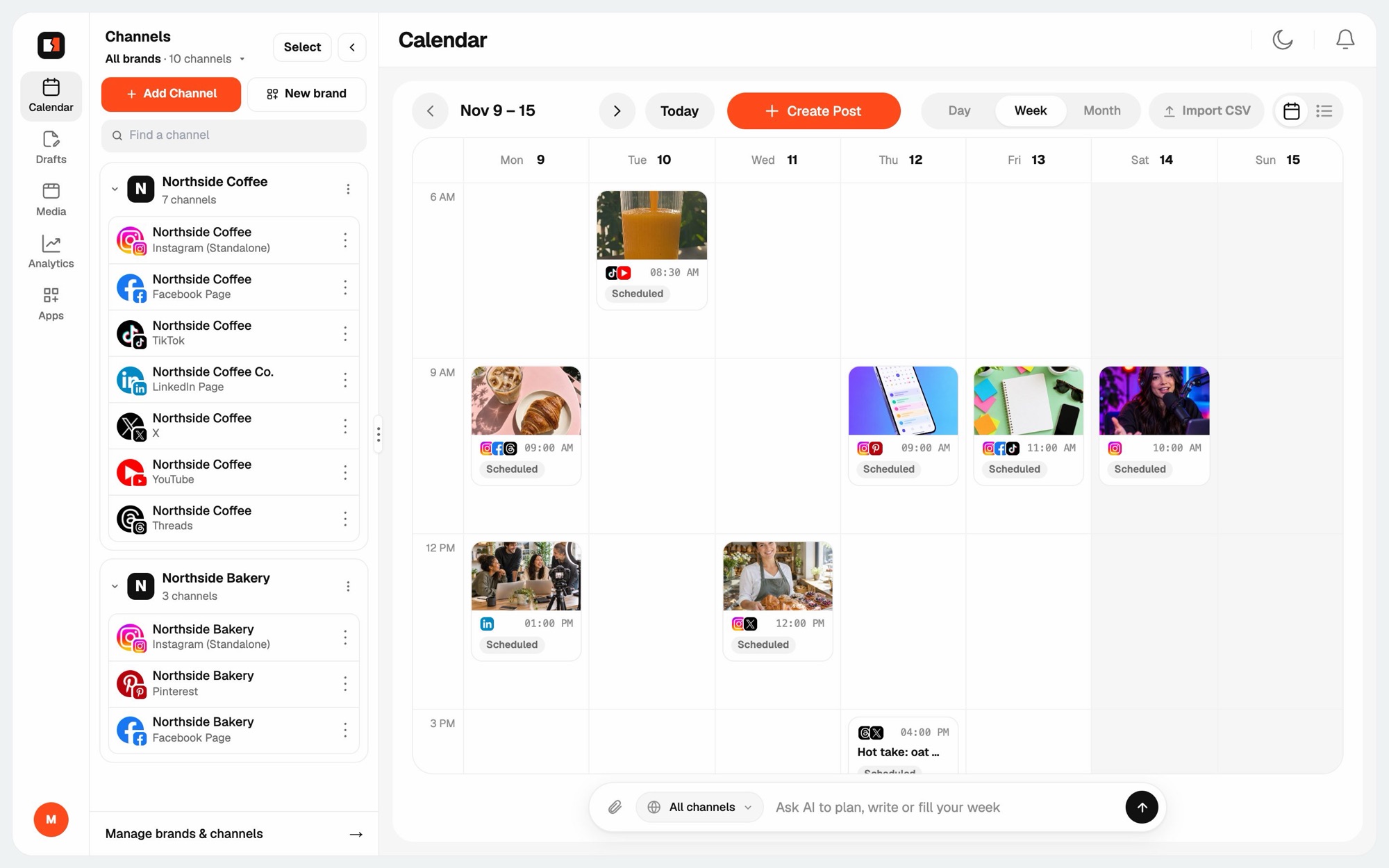
Switch between Day, Week and Month, or the list view. Drag a post to another slot to move it. Click it to edit. More in how to use the content calendar.
What to set up next
- Upload your pictures and videos to the media library so every post can reuse them.
- Group channels into brands if you run more than one business or client.
- Invite your team so others can write and schedule.
- Check analytics to see which posts work and your best time to post.
- Connect ChatGPT or Claude and schedule posts by asking in plain words.
Questions people ask
Is BrokenPost free?
Yes. The Free plan covers 2 channels and 20 posts a month. Paid plans add more channels, team members and features.
Do I need to keep my computer on?
No. BrokenPost publishes from its servers at the time you picked.
Which apps can I post to?
20+ apps, including Instagram, TikTok, Facebook, LinkedIn, X, YouTube, Threads, Pinterest and Bluesky. See [all channels](/en/channels).
Can I post right away instead of scheduling?
Yes. Pick **Now** at the bottom of the editor and the post goes out straight away.