How to make a Short in the YouTube app
- 1
Open YouTube, tap + at the bottom and choose Create a Short.
- 2
Hold the record button to film clips, or tap the gallery icon to add a video from your phone.
- 3
Tap the check mark. Add a sound, text, filters or a voiceover.
- 4
Tap Next. Write a title, choose who can see it (public, unlisted or private), and say whether it is made for kids.
- 5
Tap Upload Short.
How to upload a Short from a computer
- 1
Go to YouTube Studio and click Create, then Upload videos.
- 2
Pick a video that is vertical or square and 3 minutes or less.
- 3
Add a title and description. Including #Shorts is optional.
- 4
Set visibility, then publish or schedule it.
YouTube decides it is a Short from its shape and length, so there is no separate button.
Tips for Shorts
- Start with the payoff. People swipe fast.
- Loop it. An ending that leads back into the start gets watched twice.
- Point to a long video with a related video link if you make longer content.
- Reuse your Reels and TikToks, without other apps' watermarks.
YouTube limits
| What | Limit |
|---|---|
| Characters | 5,000 characters (for the description) |
| Media | Exactly 1 video |
| Video | Exactly 1 per post |
| Description | No < or > characters |
| Privacy | Public, private or unlisted |
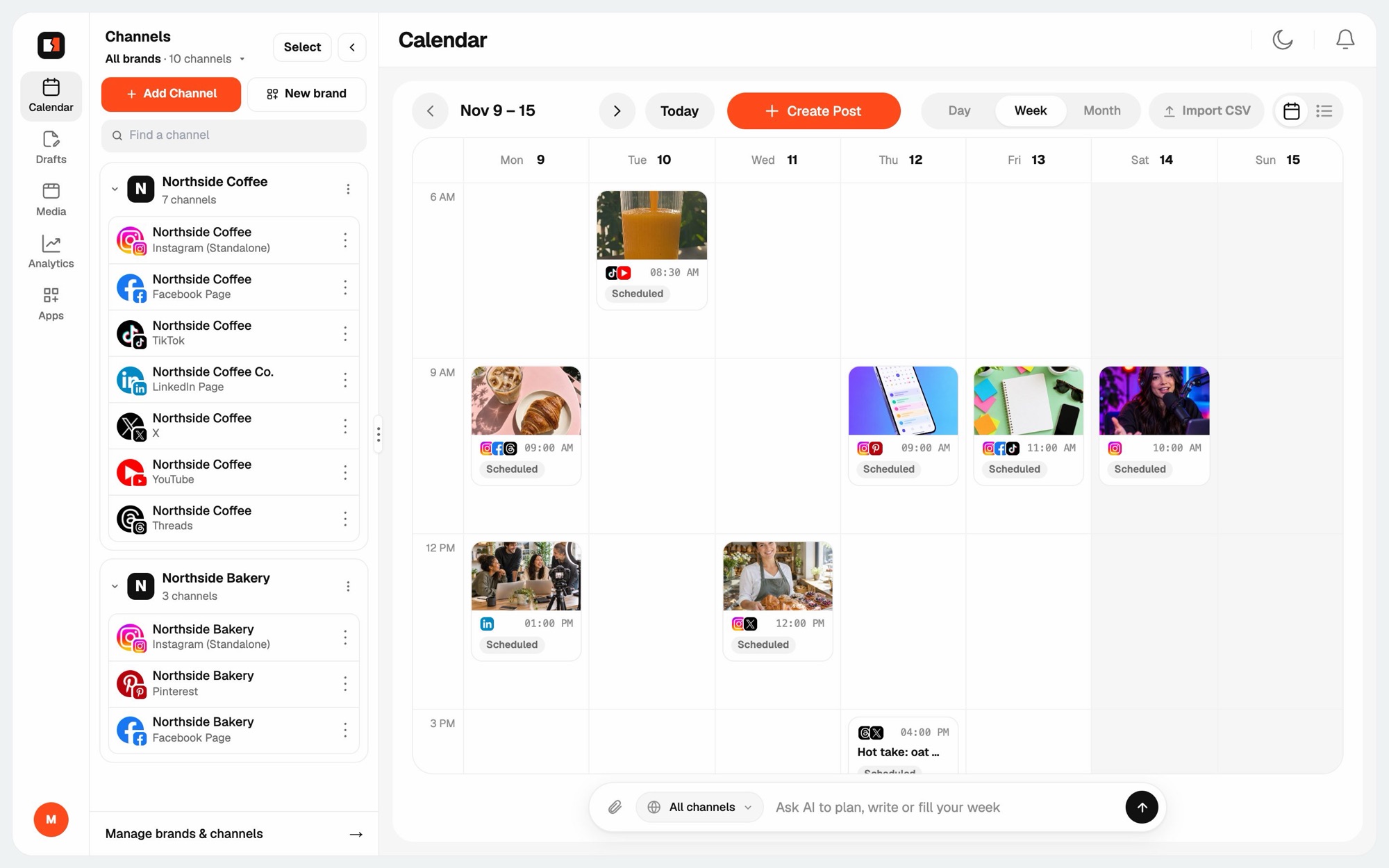
Schedule Shorts with BrokenPost
Upload the vertical video once, pick YouTube along with TikTok and Instagram, and set the YouTube title, privacy, tags and thumbnail in Settings. It goes out on all three at the time you pick.
Questions people ask
How long can a YouTube Short be?
Up to 3 minutes.
Do I need #Shorts in the title?
No. A vertical or square video of 3 minutes or less is treated as a Short.
Can I schedule a YouTube Short?
Yes, in YouTube Studio or with a scheduler like BrokenPost.